Cockpit
This view provides a customisable interface to summarise the most important project information in a visual dashboard.
WORKSPACE
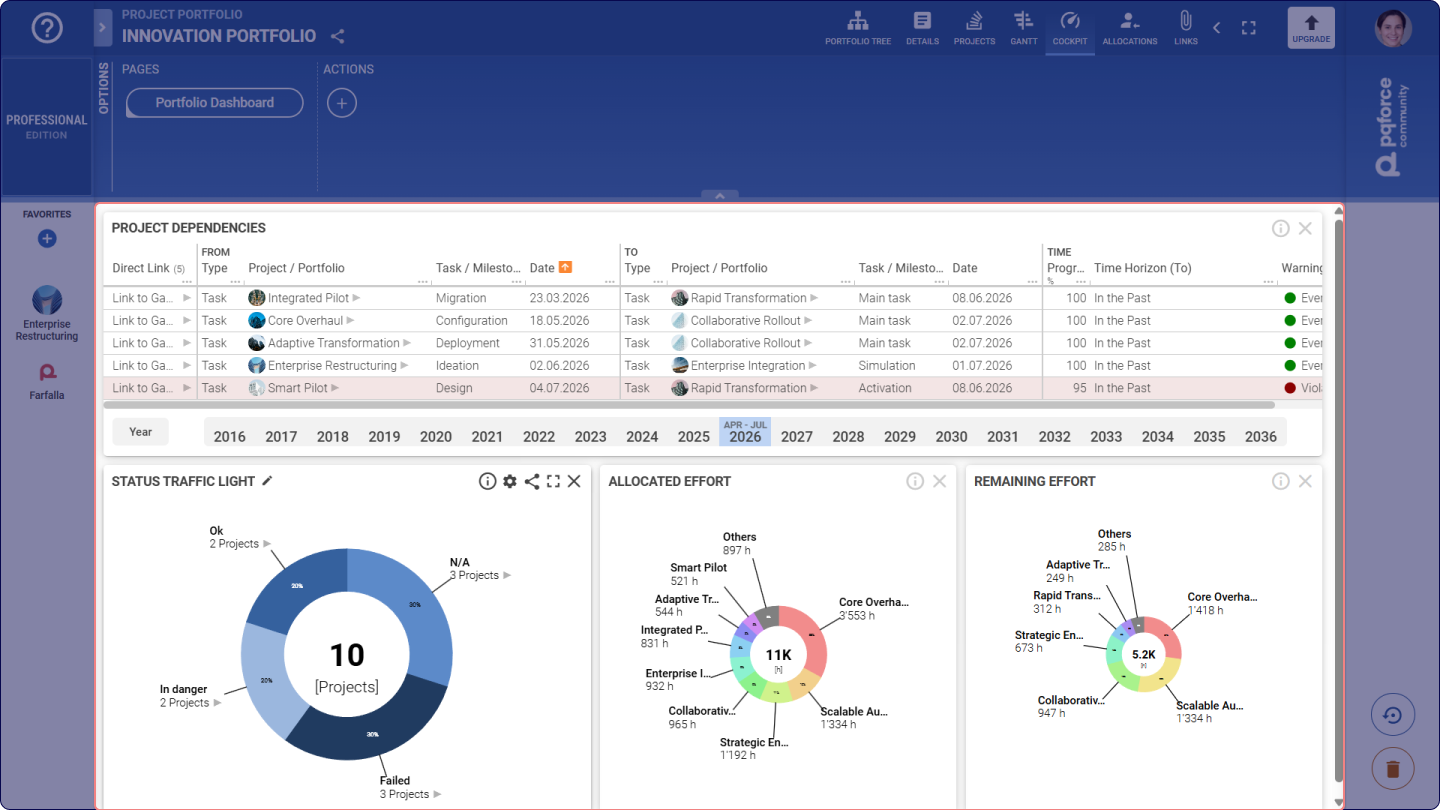
The Cockpit View workspace features a blank canvas where widgets can be incorporated to tailor the workspace for viewing the data related to the active object, allowing to monitor project progress, identifying potential issues, managing efforts, controlling costs and other.
Widget categories vary depending on the active object, for example a project portfolio, project or a resource. The option to generate multiple pages allows the creation of multiple cockpits, each equipped with distinct widgets that align with specific needs. The Cockpit view is highly configurable and may contain any desired widgets.
Each widget includes a Settings icon, which allows to customise the widget's behaviour and appearance.
Project Portfolio level
Available only for editions higher than PQFORCE Smart
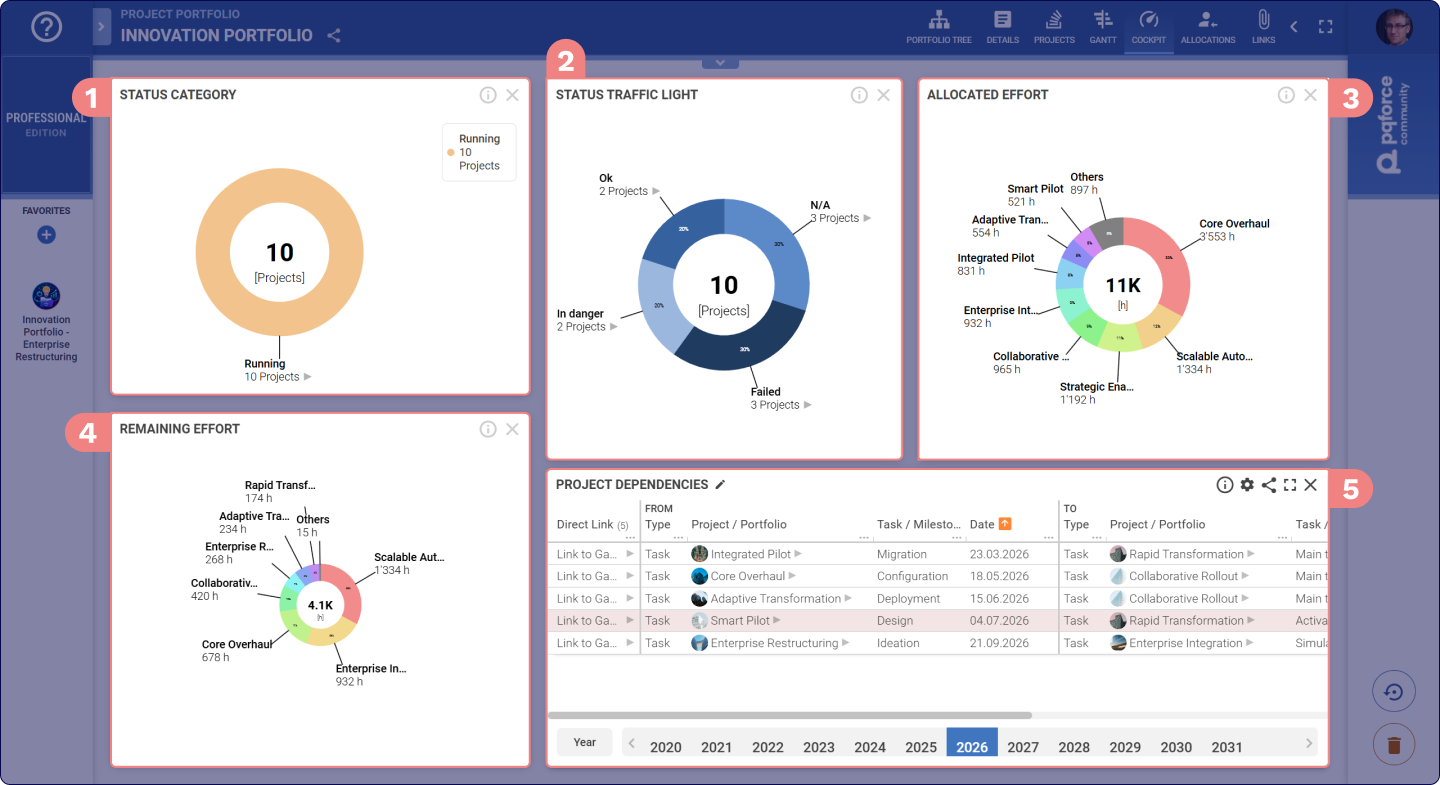
1 Status category
This widget provides a visual representation of how projects are distributed across different life cycle status categories. It allows to quickly assess the progress and balance of projects, making it easier to prioritise and allocate resources effectively.
2 Status traffic light
This view shows the distribution of projects across the status traffic light indicators based on the most recent report in the “Closed” status. It provides a quick visual overview of project health, highlighting how many projects are on track or require immediate attention.
3 Allocated effort
This widget displays how the work is divided among different projects, to see the planned effort for each one and ensure resources are distributed effectively.
4 Remaining effort
This widget allows to track how much work is still left to be done in each project, to stay on top of tasks and manage time efficiently.
5 Project dependencies
This widget provides a comprehensive view of how portfolios, projects, tasks, and milestones are linked through dependencies, showing both the source (From), target (To) and Time period of each relationship. It displays the dependency type, the related project or portfolio, the affected task or milestone, and the associated dates, allowing users to trace how one activity depends on another across the project landscape.
Project level
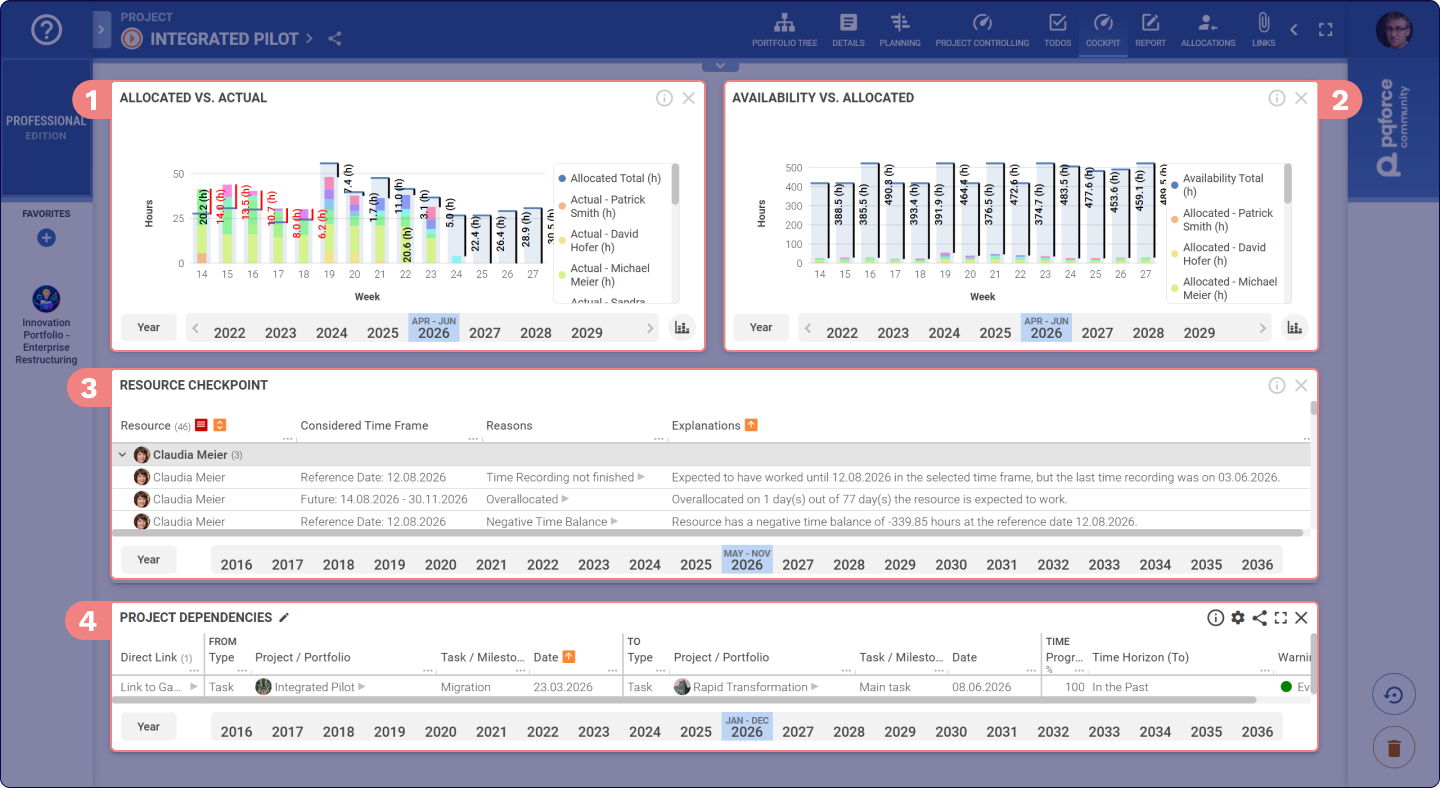
1 Allocated vs. Actual
Available only for editions higher than PQFORCE Smart
This widget compares allocated effort with actual effort recorded for projects. It helps assess how closely project execution aligns with planning, identify variances between planned and actual work, and support project performance analysis.
2 Availability vs. Allocated
Available only for editions higher than PQFORCE Smart
This widget compares available capacity with effort allocated to projects. It helps assess whether project allocations fit within available capacity, identify over-allocation or underutilisation, and highlight potential capacity constraints affecting project delivery.
3 Resource Checkpoint
Available only for editions higher than PQFORCE Smart
This widget lists all resources assigned to the project that fulfil the conditions chosen in the cockpit options, as well as the considered time frame, reasons and explanations, helping to identify and address resource-related risks. It's possible to jump on the corresponding view clicking on the small triangle icon in the Reason.
4 Project Dependencies
This widget provides a comprehensive view of how projects, tasks, and milestones are linked through dependencies, showing both the source (From), target (To) and Time period of each relationship. It displays the dependency type, the related project or portfolio, the affected task or milestone, and the associated dates, allowing users to trace how one activity depends on another across the project landscape.
Organisational Unit level
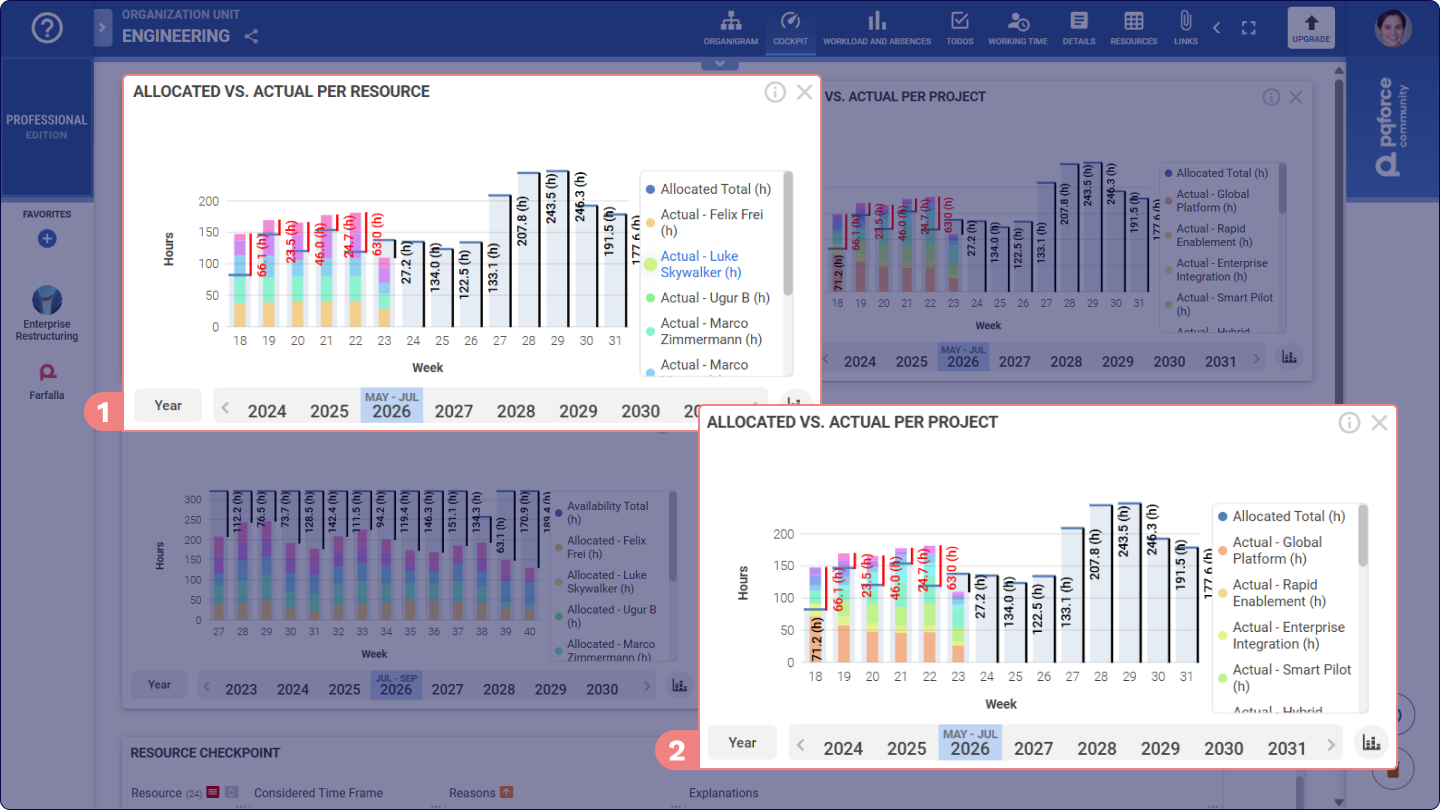
1 Allocated vs actual per resource
Available only for editions higher than PQFORCE Smart
This widget compares the allocated effort with the actual effort recorded for each resource within the organisational unit in a selected timeframe. It allows to evaluate resource utilisation, identify over- or under-allocation, and understand how closely actual work aligns with planning across the unit.
2 Allocated vs actual per project
Available only for editions higher than PQFORCE Smart
This widget compares the allocated effort with the actual effort recorded per project for the organisational unit within a specific timeframe, helping to assess how work is distributed and executed across projects and identify deviations from planning.
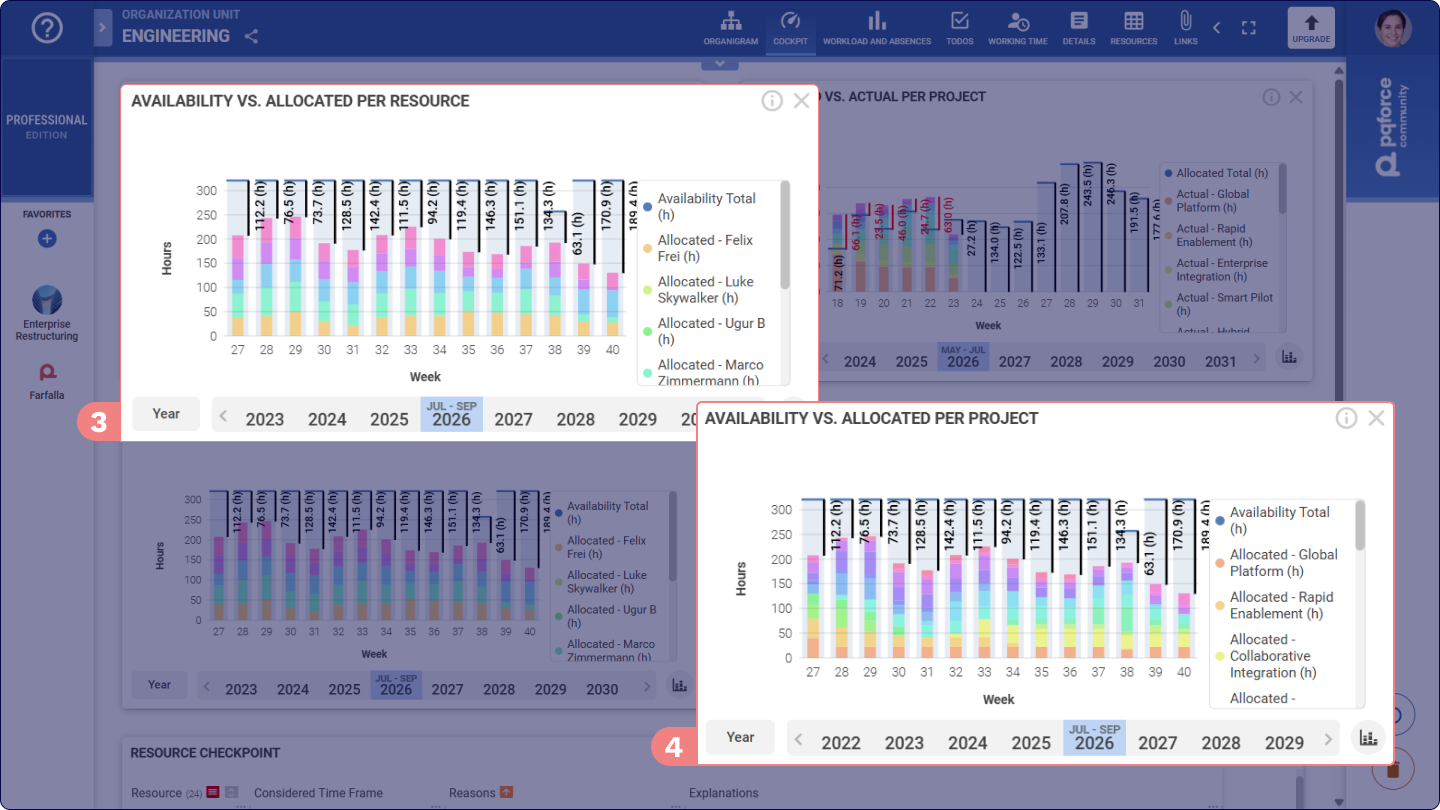
3 Availability vs allocated per resource
Available only for editions higher than PQFORCE Smart
This widget compares each resource’s available working capacity with the effort allocated to them across the organisational unit within a specific timeframe. It allows to identify over-allocation, underutilisation, and capacity constraints.
4 Availability vs allocated per project
Available only for editions higher than PQFORCE Smart
This widget compares the available working capacity with the effort allocated to each project within the organisational unit and a specific timeframe. It allows to assess whether project allocations fit within overall availability and highlights capacity constraints or unused capacity across projects.
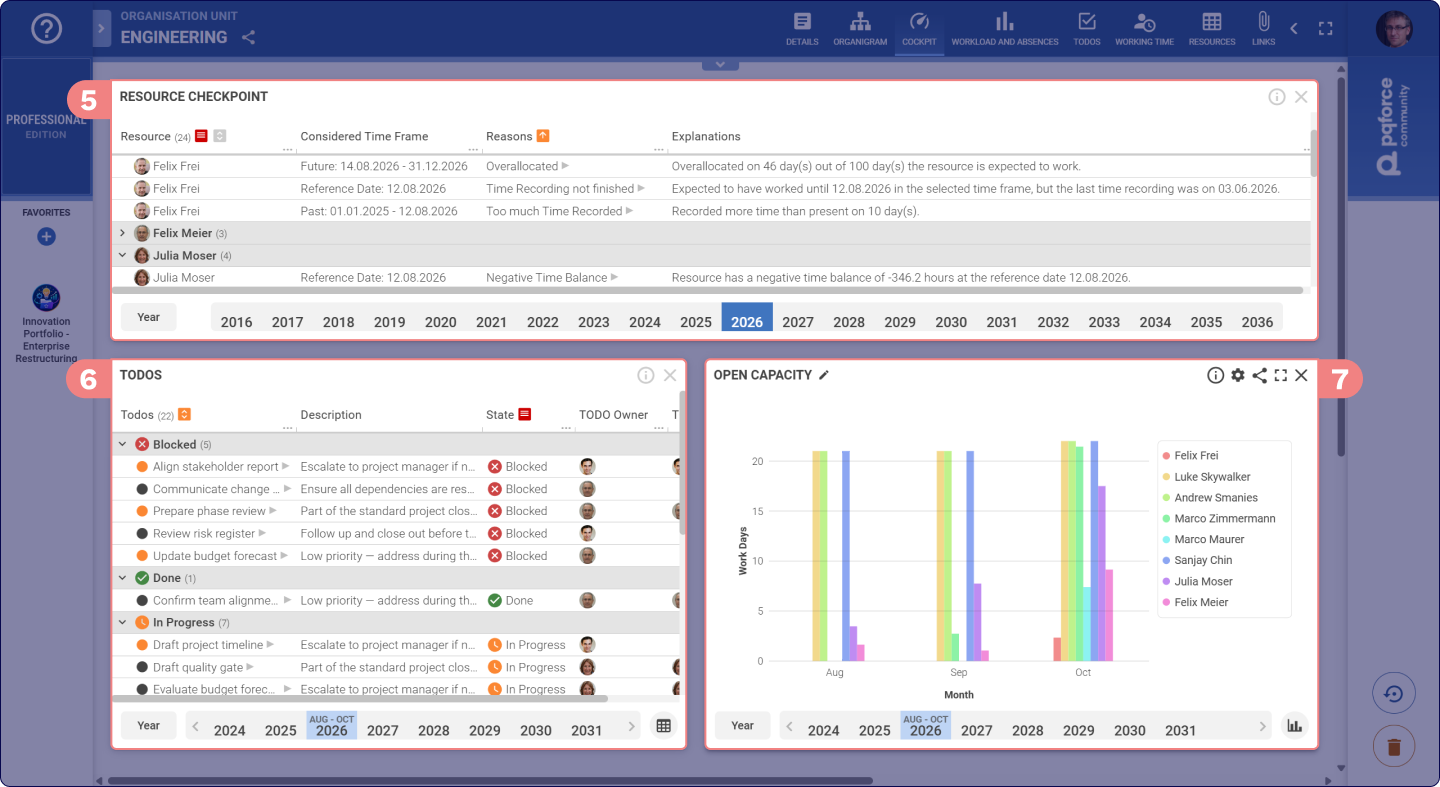
5 Resource Checkpoint
Available only for editions higher than PQFORCE Smart
This widget lists all resources assigned to the project that fulfil the conditions chosen in the cockpit options, as well as the considered time frame, reasons and explanations, helping to identify and address resource-related risks. It's possible to jump on the corresponding view clicking on the small triangle icon in the Reason.
6 Todos
This view shows all TODOs assigned to employees within the organisational unit, with multiple filtering options. It’s possible to jump to the corresponding TODO by clicking on the small triangle icon next to the TODO name.
7 Open Capacity
This widget displays the open capacity of resources in the organisation unit, broken down by the selected zoom level (day or month). Open capacity is calculated as availability (presence minus baseload) minus allocation.
Employee level
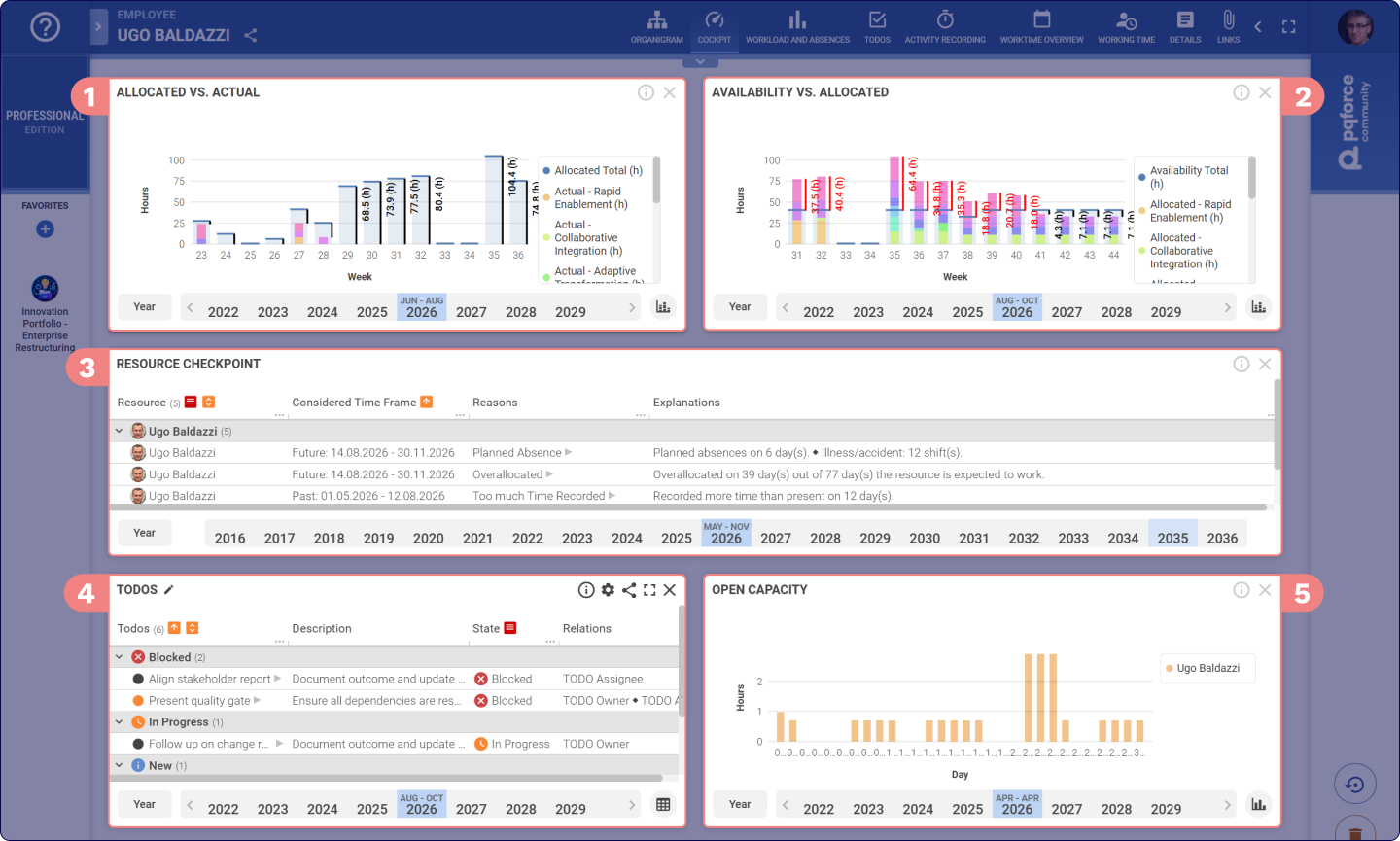
1 Allocated vs actual
Available only for editions higher than PQFORCE Smart
This chart compares the hours allocated to all projects assigned to the selected resource versus actual hours recorded by the employee, broken down by a selected time frame. It allows to assess how closely actual effort matches planned effort and highlights deviations such as over- or under-allocation over time.
2 Availability vs allocated
Available only for editions higher than PQFORCE Smart
This chart compares the employee’s available working hours with the effort allocated to the assigned projects within the selected time frame. It allows to verify that assigned work fits within the employee’s availability and highlights potential over-allocation or unused capacity over time.
3 Resource Checkpoint
Available only for editions higher than PQFORCE Smart
This view lists all reasons why this specific resource requires attention, based on predefined criteria. It highlights issues such as considered time frames, reasons and explanations, that may highlight the aspects requiring attention.
4 Todos
Displays all TODOs associated with the selected resource, together with their relative attributes over the selected time frame.
5 Open Capacity
This widget shows the open capacity of this resource over selected time frame.
OPTIONS AREA
The Cockpit View's Options Area adds more customisation options. It has two sections: Pages and Actions.
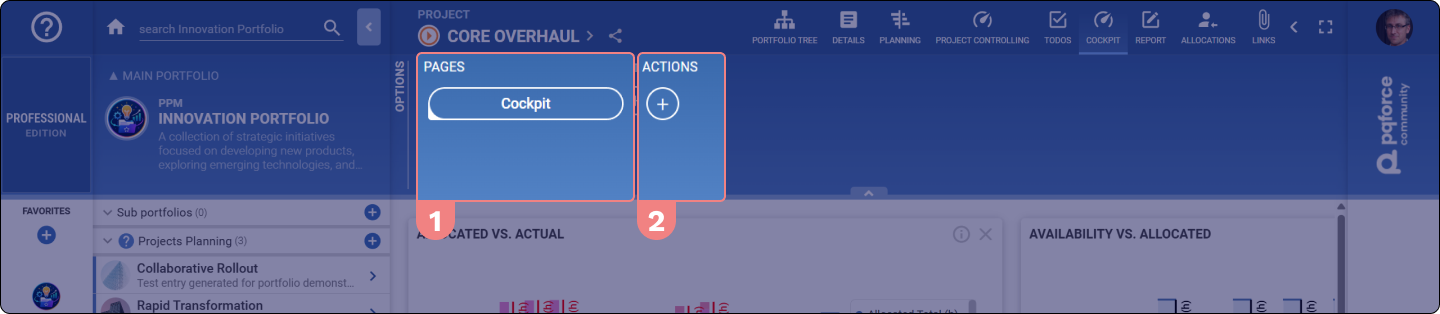
1 PAGES
In the Pages section, it's possible to create additional pages to organise cockpits based on different criteria. Each page is like a folder where related cockpits can be grouped. Cockpits can be easily found by creating, for example, pages as "Overview" or “Effort management”, and inserting the relevant cockpits in the corresponding page.
2 ACTIONS
In the Actions section, widgets can be added to selected cockpits. Click the plus button to view a list of available widgets from the four categories. Choose the desired widget, and it will be added to the currently selected cockpit. Size, position, and appearance of each widget can be customised to suit user's preferences.