Farfalla
Farfalla is a visual TODO management tool designed to assist users in organising work, managing multiple workflows simultaneously, and tracking ongoing activities.
It provides a fully customisable workspace, enabling users to create personalised workflow structures, manage and oversee TODOs across various projects and project portfolios, monitor progress, and receive real-time updates throughout the system.
Workspace
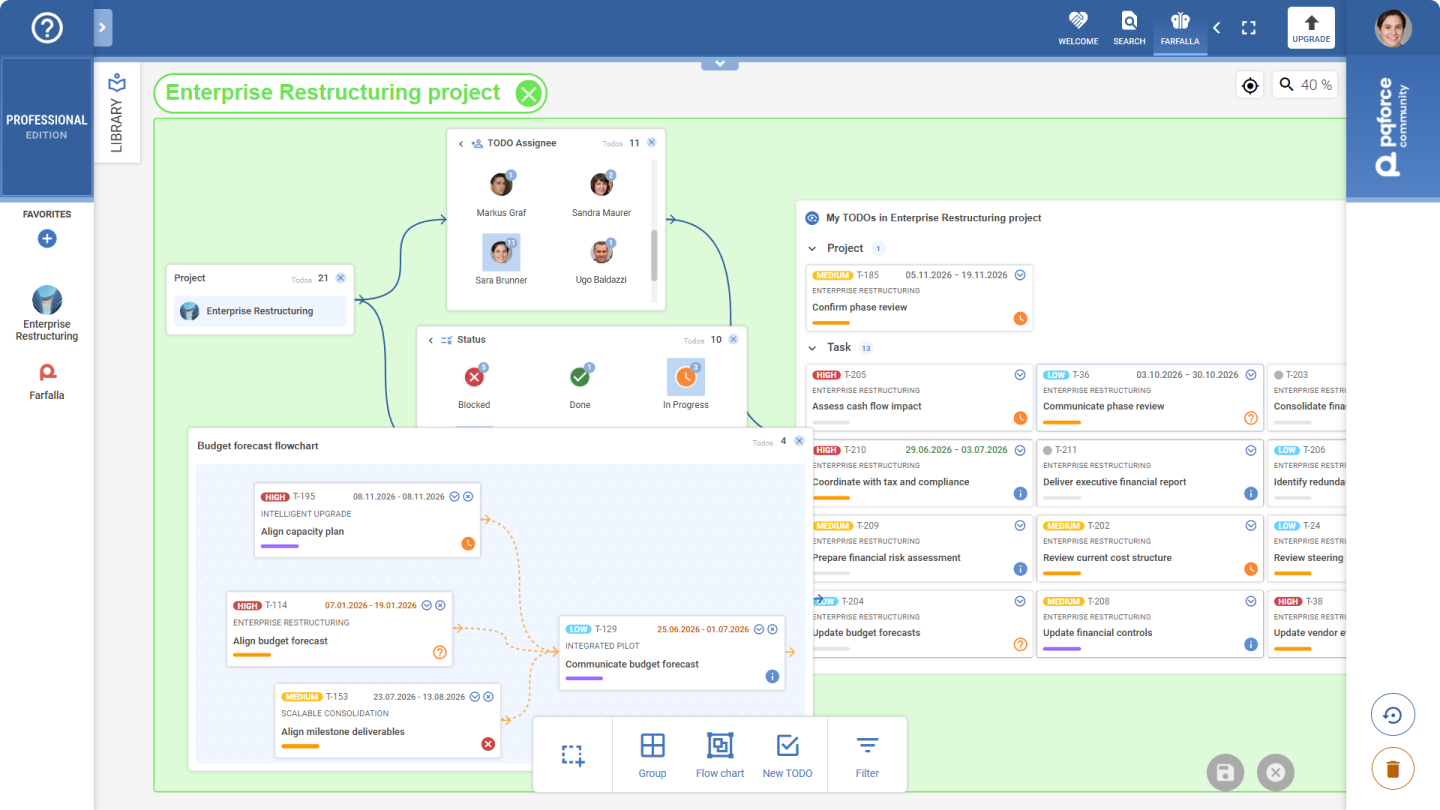
The workspace in Farfalla serves as an unlimited whiteboard where users can create, organise, and manage TODOs, form groups, build flowcharts, and set up workboards.
In Farfalla, TODOs and other related objects are represented as movable cards. Other tools, such as groups, flowchart groups and filters, are presented as boxes, within which cards can be added, arranged, and filtered.
To navigate the whiteboard, left-click anywhere on the board and drag to move the view. Alternatively, press Shift + mouse wheel or use your trackpad to scroll and move the view. Everything inside the whiteboard can be repositioned freely by clicking and dragging the top area to the desired location.
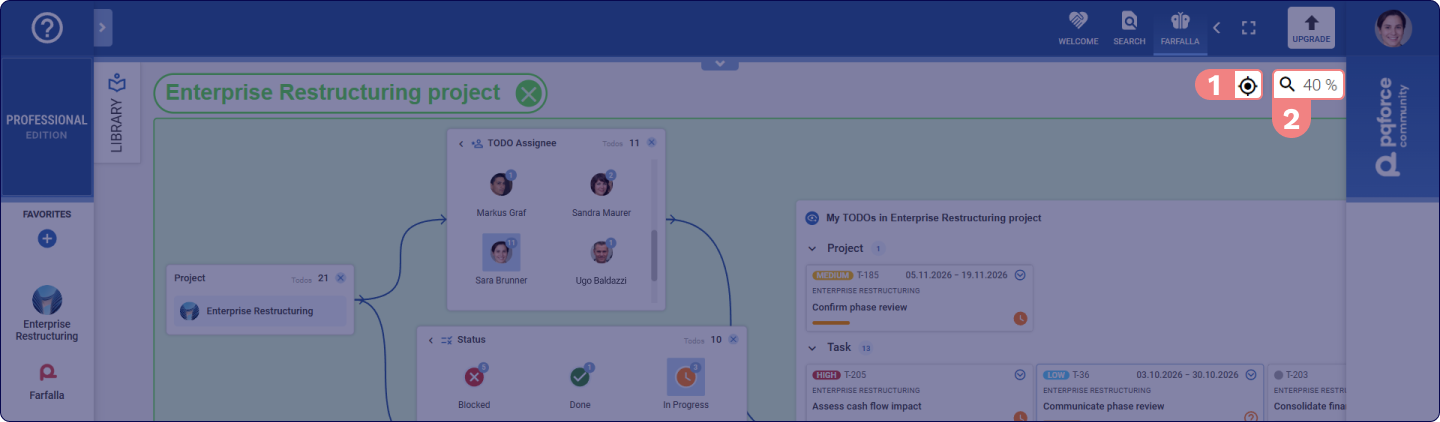
1 The “Go to Starting Position” icon, located in the upper-right corner of the whiteboard, allows users to quickly reset the view. Clicking this icon returns the whiteboard to its original starting position.
2 The “Zoom” icon, also located in the upper-right corner of the whiteboard displays the current zoom percentage. Zooming can be achieved by holding the CTRL key and scrolling the mouse wheel.
Library
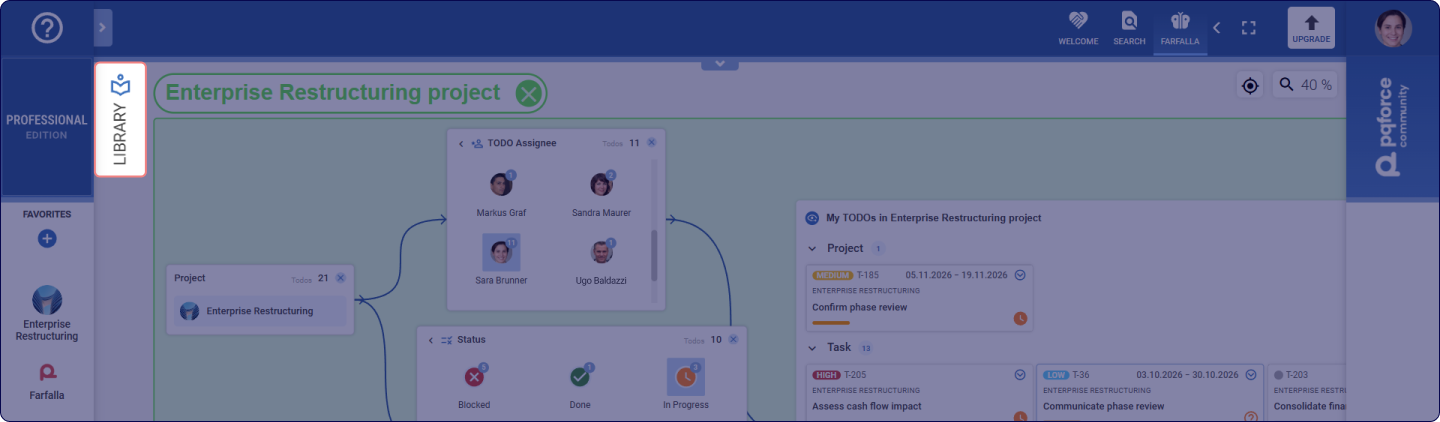
The Library section provides a structured overview of system elements connected to TODOs.
The left side "TODO" section lists all existing TODOs in your system. To add one or more TODOs to the whiteboard, select the items by clicking and dragging them into the workspace.
The right side "OBJECTS" lists various object types within the system that are linked to TODOs, such as tasks, project reports, risks, employees, organisational units, teams, meetings, projects, and project portfolios. Upon selecting an object type from the drop-down menu, a list of related objects appears below. Users can select one or more of these objects and drag them onto the whiteboard.
To display TODOs related to a selected object type, the object must be linked to a group containing TODOs or directly to a filter. Once connected, the group box will show only the TODOs associated with the selected object type.
Toolbar
The Toolbar offers essential tools to support the organisation of TODOs within the whiteboard.

1 Area Creator
The Area Creator tool allows users to define and highlight specific sections of the whiteboard. Each area can have a unique size, colour, and heading. To create an area, click on a point on the whiteboard and drag to another point to form a square or rectangular shape. The size of the area can be adjusted by clicking and dragging its borders.
2 Group
The Group tool enables the organisation of multiple TODOs into a structured group. To create a group, select the Group tool from the toolbar and drag it onto the whiteboard. A new group will be represented by a box, which can display a selection of TODOs based on specific criteria. TODOs can be added manually by dragging them from the Library or directly from the whiteboard into the Group box. Click on the heading in the top-left corner to rename the group.
The group can also automatically display TODOs based on the input connections. This can be done for example by dragging an object into the whiteboard and connecting it with the Group box using an arrow. This will show all the TODOs related to the chosen object.
Group by:This feature opens a drop-down menu with various object types, such as project, task, risk, or report. By selecting one of these options, users can further organise the TODOs inside the group based on their shared object type.
3 Flow chart Group
The “Flowchart Group” tool creates a dedicated workspace where TODOs can be collected, organised, and visually connected. This makes it easy to build and visualise flowcharts that represent processes, workflows, or task dependencies.
4 New TODO
The “New TODO” tool enables users to create a new TODO item directly on the whiteboard. All TODOs created here will be saved and accessible throughout the platform.
5 Filter
The “Filter tool” narrows the display of TODOs based on specific relations or attributes:
Relations: Displays TODOs associated with specific objects, such as assignee, project, report, task, meeting, project portfolio, risk, or owner.
Attributes: Displays TODOs based on properties such as status, earliest start time, colour, deadline, or priority.
To apply a filter, drag the Filter tool onto the whiteboard and connect it to an object or a box (such as a Group, Flowchart, or another Filter).Before or after connecting it select the desired filter type. This will display the TODOs related to the original object according to the filter criteria. You can apply multiple filters to a group to refine the results further.
Options Area
Tutorials: Access a range of guides to help you navigate and utilise Farfalla effectively.