Projects
This view provides a customisable overview of all active projects existing in the PQFORCE system.
Workspace
![]()
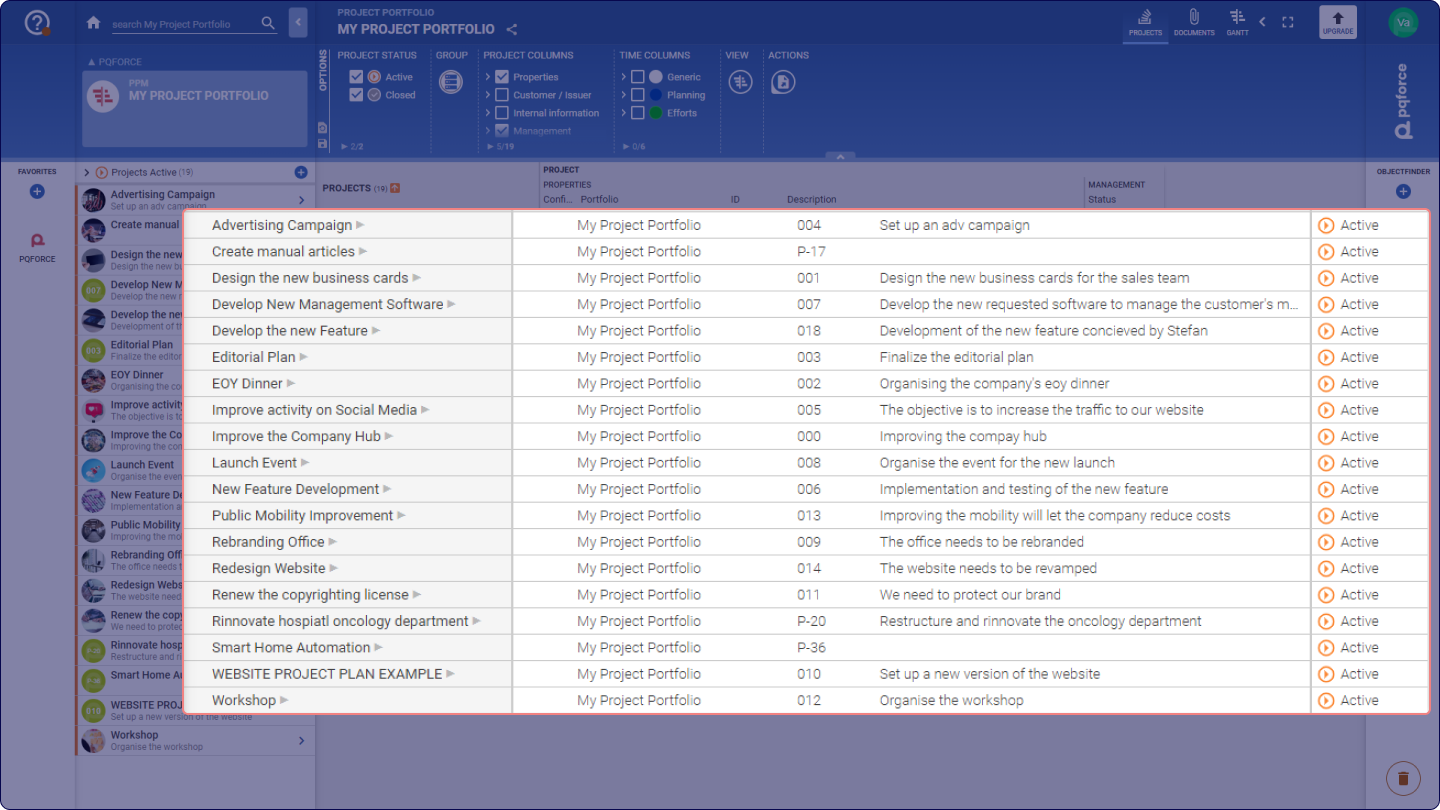
Within the workspace, this view features a table where all the projects within the system are arranged as rows, and the properties of these projects are organised as columns. The information presented depends on the settings selected in the Options Area. These settings play a dual role: first, they dictate which projects are showcased in the project portfolio, and second, they determine which properties appear as columns in the workspace table.
Column filtering
Each column in the table can be used to refine the information displayed in the workspace through sorting or filtering based on the information in each column.
Clicking on the heading of a column organises projects according to the information in that column in ascending order. Repeated clicks on the column heading toggle the direction from ascending to descending and vice versa.
![]()
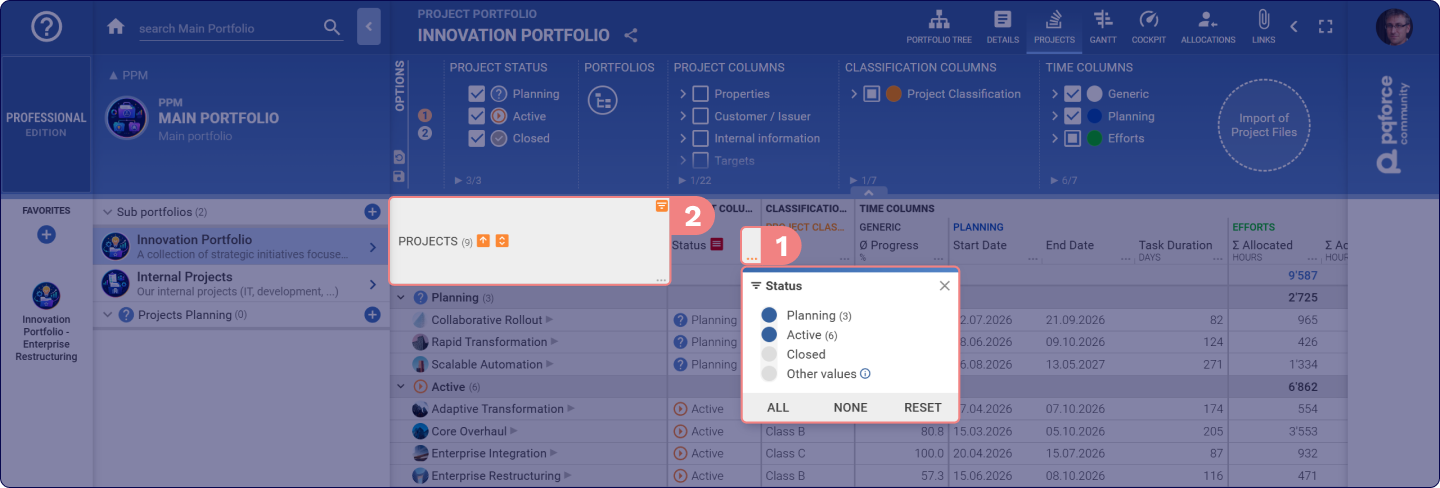
1 Clicking on the three small dots adjacent to the heading of a column enables the setting of a filter for the corresponding column. All available values in this column are presented, and selections or deselecting of values can be performed. Clicking on ALL selects all values, while clicking on NONE deselects all values. The RESET option restores the previously set selection before opening the filter. Filter configurations can be applied across multiple columns simultaneously to precisely narrow down the selection of projects.
2 Clicking on the symbol next to the heading of the PROJECTS column deactivates all filters.
Move and Link Projects in the Navigator
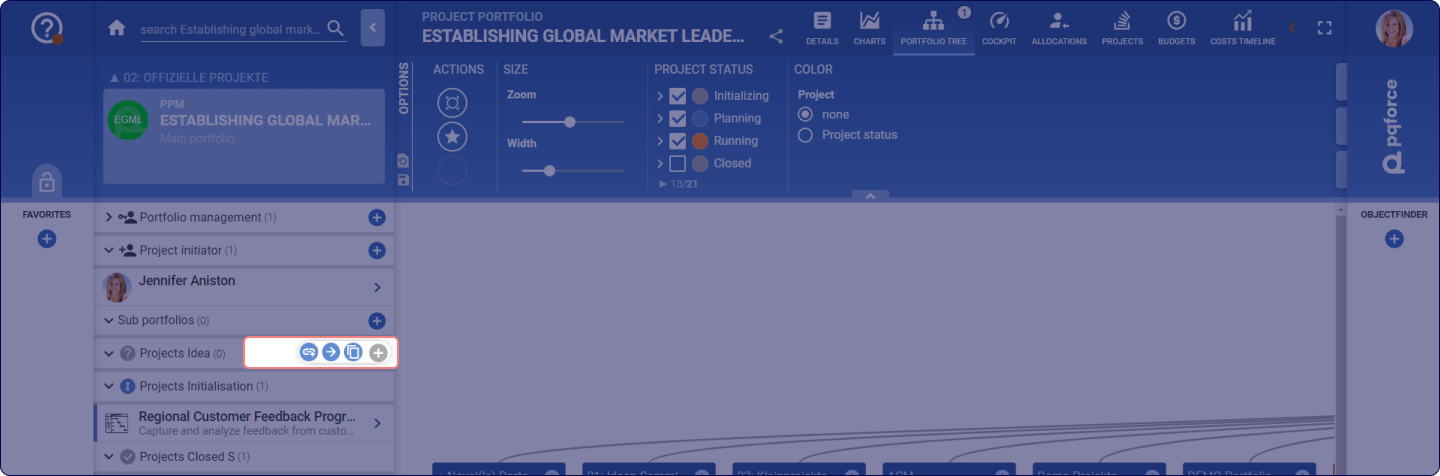
It is possible to create a copy of a desired project by dragging and dropping the project into the Plus icon ![]() at the desired destination.
Copy Element: Creates a copy of the project inside selected project portfolio.
This results in a separate copy, meaning modifications in one project will not affect the project copy. Clicking on Copy element opens a new window, allowing the choice to copy only the project or also the items included in it, such as allocations, lins, or TODOs contained within the project.
![]()
Moving Projects
Projects can be moved from one portfolio to another by dragging and dropping them into the desired location, such as a portfolio or sub-portfolio, even across different browser tabs.
Linking Projects
A project can belong to multiple portfolios. To link a project to an additional portfolio:
Drag the project to the desired project portfolio or sub-portfolio. This action will display three circle-shaped icons:
Create Relation: Links the project to the selected portfolio. This allows to access the same project from different portfolios linked to the same project.
Move Element: Moves the project's location from its current portfolio to the selected portfolio.
Copy Element: Creates a copy of the project inside selected project portfolio or in a different project portfolio.
This results in a separate copy, meaning edits in one project will not affect the project copy.
![]()
Clicking Copy Element opens a new window, allowing the choice to copy only the project or also the items included in it, such as allocations, links, or TODOs contained within the project.
![]()
Options Area
The following section describes in detail which settings can be made in the Options Area.
![]()
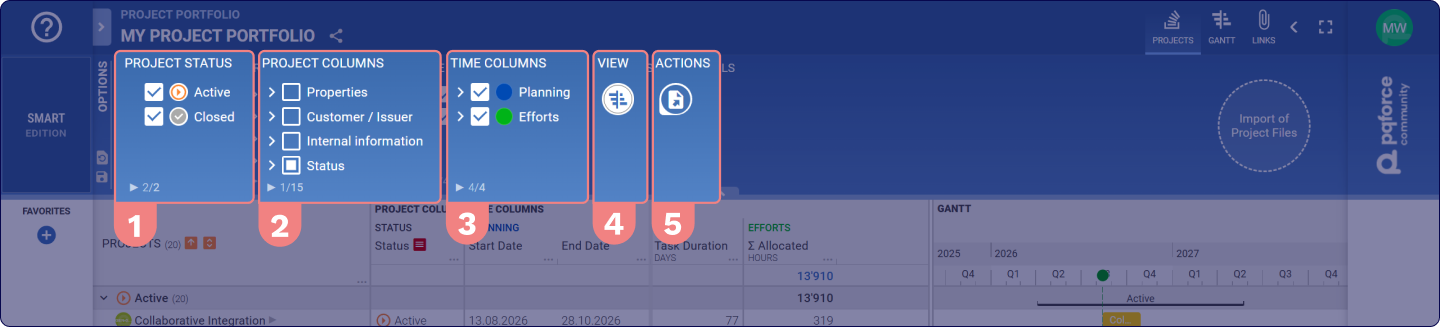
1 PROJECT STATUS
These check boxes can be used to determine which projects are displayed in the workspace, depending on their Lifecycle status.
2 PROJECT COLUMNS
Here the columns in the workspace can be displayed or removed with attributes of the DETAILS view of the projects.
3 TIME COLUMNS
Columns in the workspace can be displayed or removed with values from the PLANNING view of the projects.
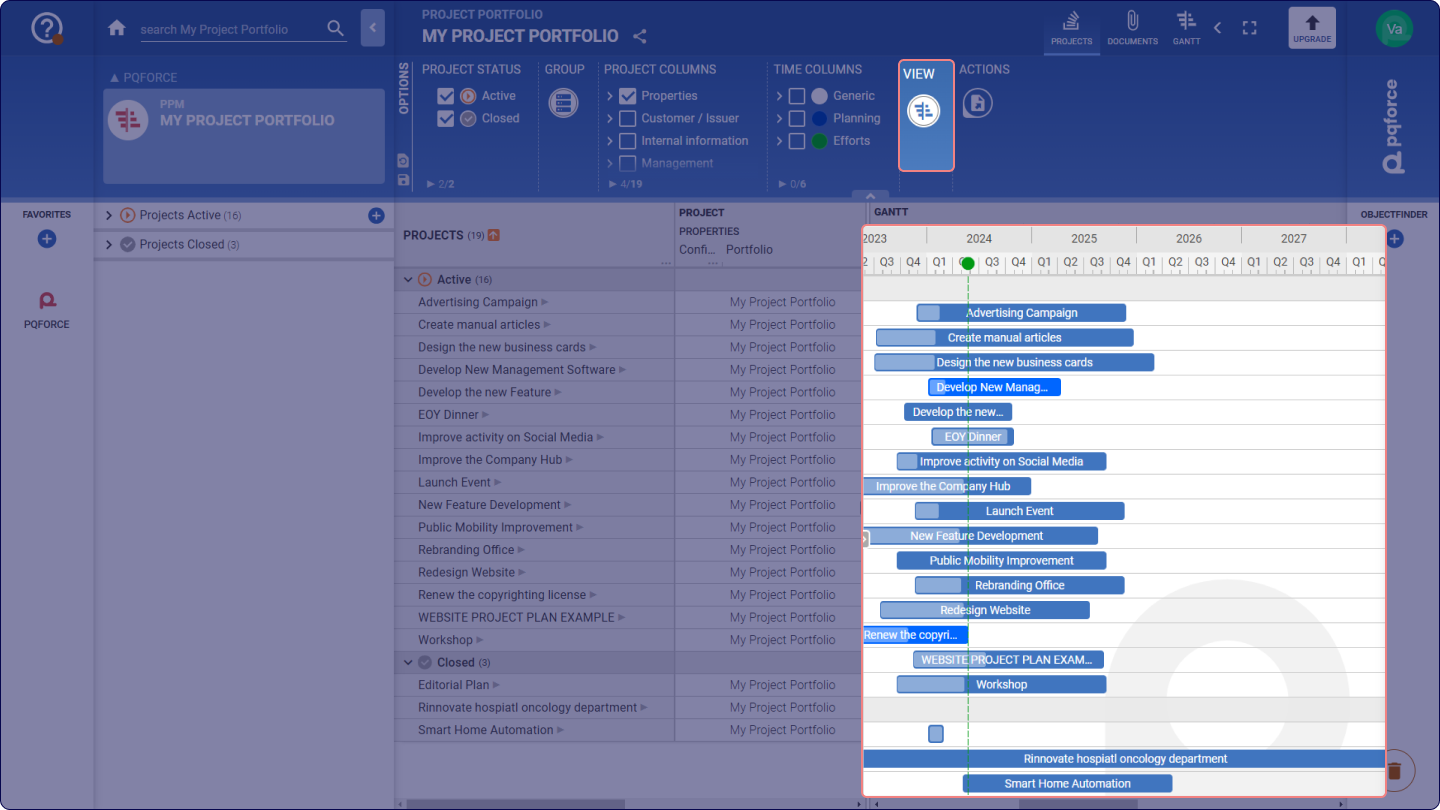
4 VIEW
![]()
5 ACTIONS
Actions for the active view can be performed here.
Export: Here the currently displayed table can be exported in pdf format.
![]()
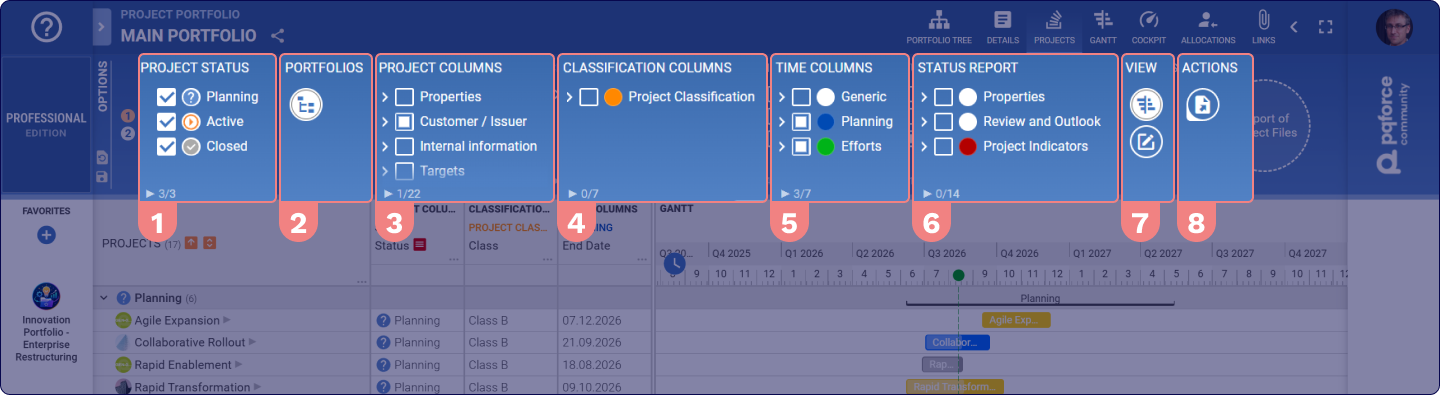
1 PROJECT STATUS
These check boxes can be used to determine which projects are displayed in the workspace, depending on their Lifecycle status.
2 PORTFOLIOS
Allows to show or hide projects of sub-portfolios
3 PROJECT COLUMNS
Columns in the workspace can be displayed or removed with attributes from the DETAILS view of the projects.
4 CLASSIFICATION COLUMNS
Additional columns can be displayed here to define further attributes for project classification.
5 TIME COLUMNS
Columns in the workspace can be displayed or removed with values from the PLANNING view of the projects.
6 STATUS REPORT
This section manages the visibility of columns that cover details on the current or next reporting period as well as indicators on the main KPIs.
7 VIEW
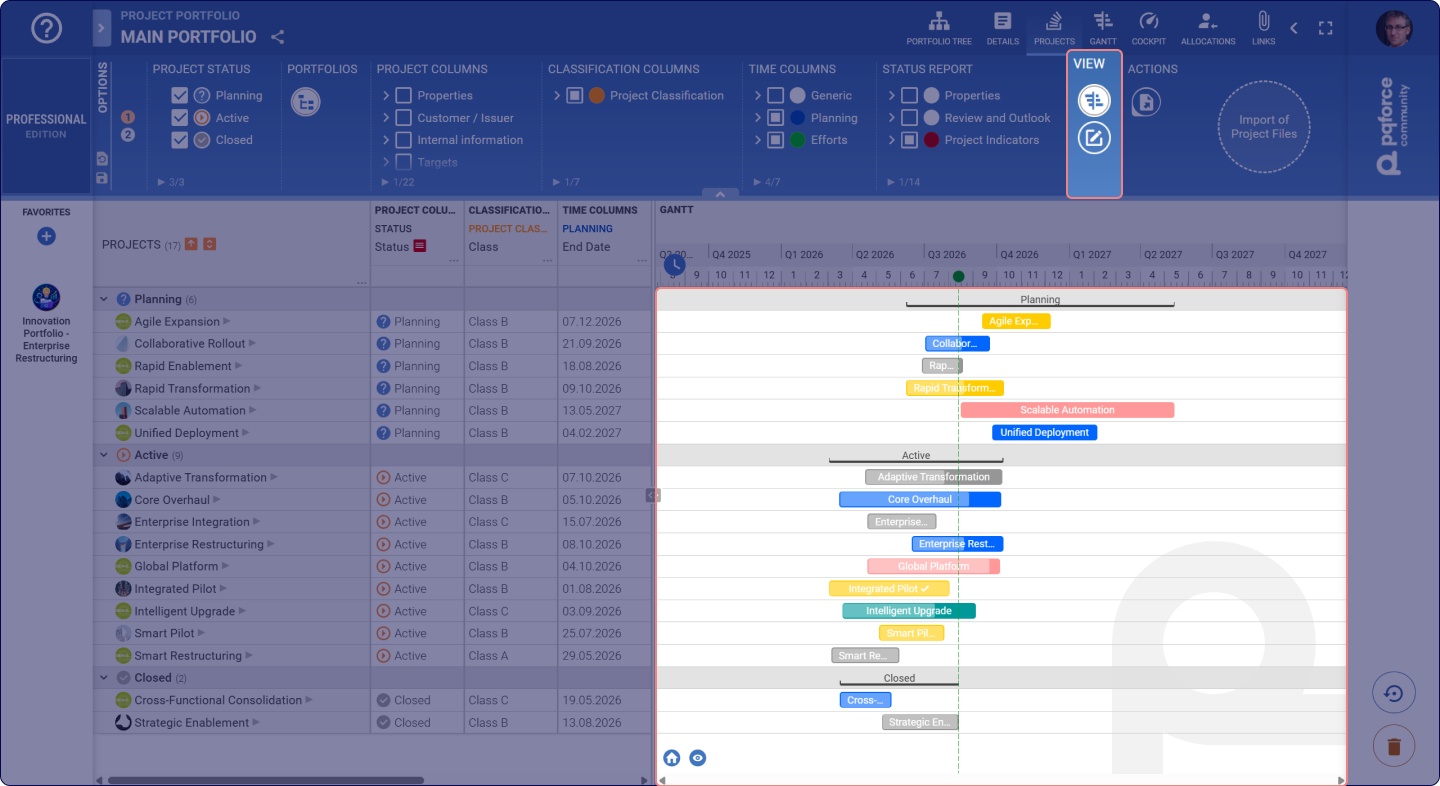
GANTT: Enable or disable a Gantt overview at the main project level to provide a snapshot of the time horizon for each project.
![]()
REPORT: Enable or disable a secondary workspace that provides an overview of all past status reports for a selected project, including trend indicators, current status, and remarks for future reporting periods.
![]()
8 ACTIONS
Actions for the active view can be performed here.
Export: Here the currently displayed table can be exported in xlsx format.
1 PROJECT STATUS
These check boxes can be used to determine which projects are displayed in the workspace, depending on their Lifecycle status.
2 PORTFOLIOS
Allows to show or hide projects of sub-portfolios
3 PROJECT COLUMNS
Columns in the workspace can be displayed or removed with attributes from the DETAILS view of the projects.
4 CLASSIFICATION COLUMNS
Additional columns can be displayed here to define further attributes for project classification.
5 TIME COLUMNS
Columns in the workspace can be displayed or removed with values from the PLANNING view of the projects.
6 COST COLUMNS
Columns in the workspace can be displayed or removed with values from the cost management features across the system.
7 STATUS REPORT
This section manages the visibility of columns that cover details on the current or next reporting period as well as indicators on the main KPIs.
8 VIEW
GANTT: Enable or disable a Gantt overview at the main project level to provide a snapshot of the time horizon for each project.
![]()
REPORT: Enable or disable a secondary workspace that provides an overview of all past status reports for a selected project, including trend indicators, current status, and remarks for future reporting periods.
![]()
CURRENCY: A different currency can be set for the view.
9 ACTIONS
Actions for the active view can be performed here.
Export: Here the currently displayed table can be exported in multiple formats.
 at the desired destination.